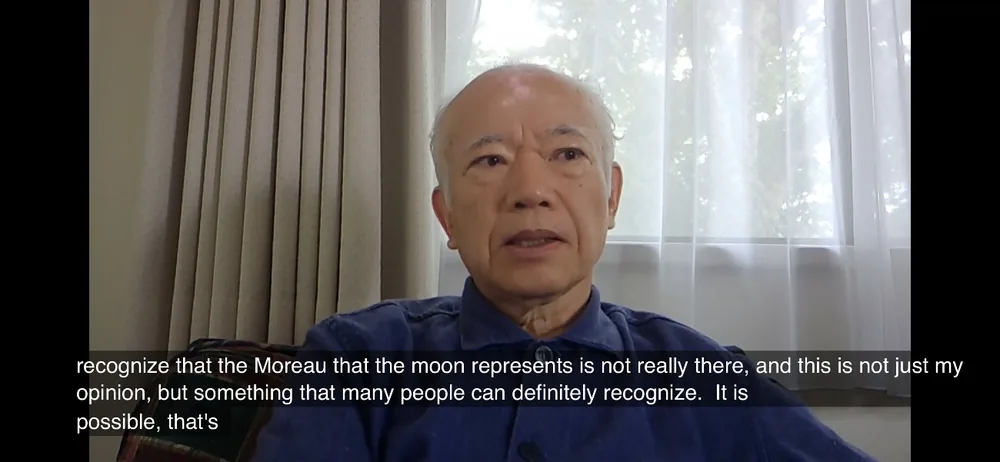
How to Watch Videos with Subtitles in Your Language
Don't worry about the language!

Since starting his YouTube channel in 2017, Mademoiselle Ai has built up an extraordinary body of lectures and research on Western astrology. Alongside videos that cover the traditional foundations, you'll find in-depth explorations of the subject's central questions. These offer insights that go well beyond what most beginner and intermediate books cover. All told, his channel now features over 800 astrological videos.
The only drawback? Every one of them is in Japanese. Not to worry, though. You can easily watch them with subtitles in your own language.
You can find detailed instructions on managing your caption settings on the YouTube Help page: https://support.google.com/youtube/answer/100078
Here is a step-by-step guide on how to turn on auto-translated subtitles for videos spoken in Japanese.
Here's how to set it up.
For PC
-
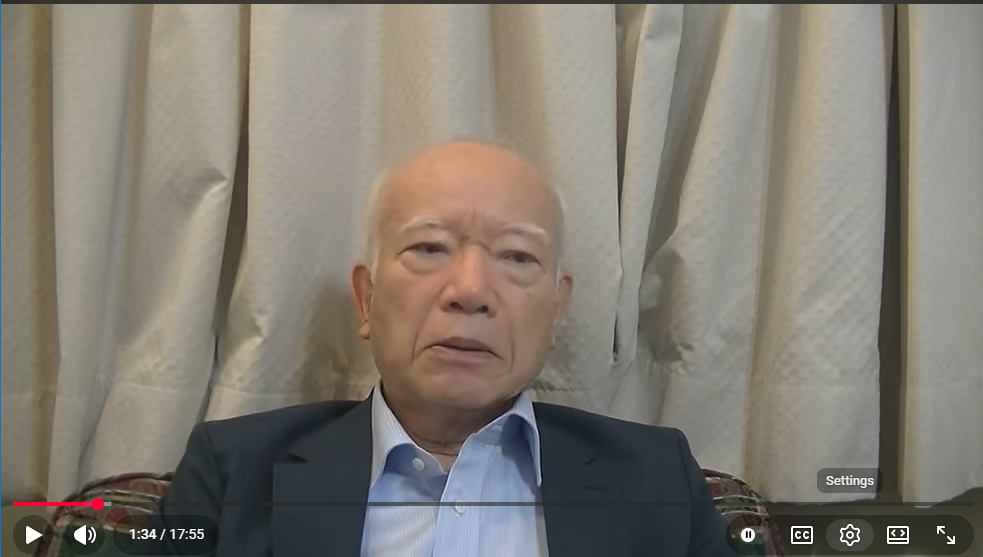
Move your mouse over the Settings (gear) icon on the video screen.
-
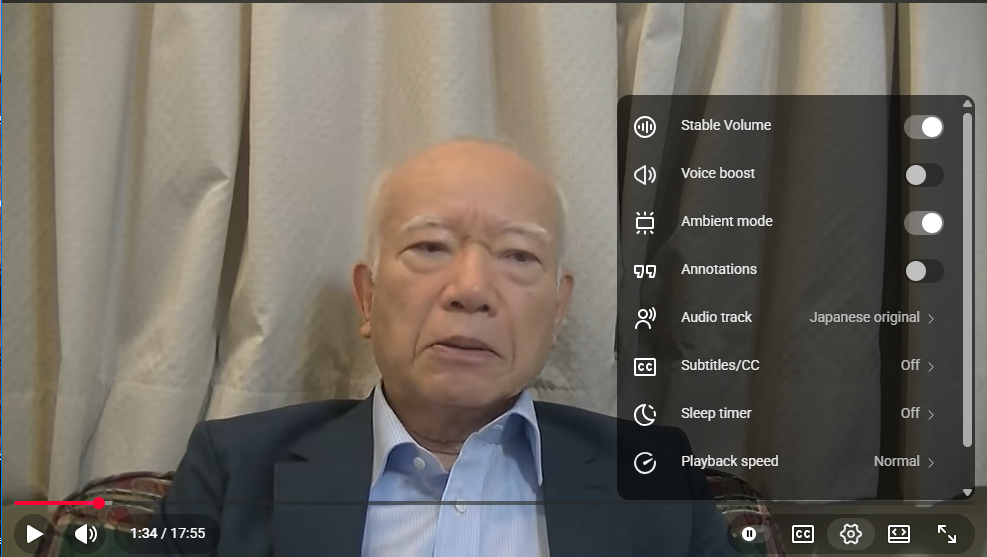
Click the Settings icon.
-
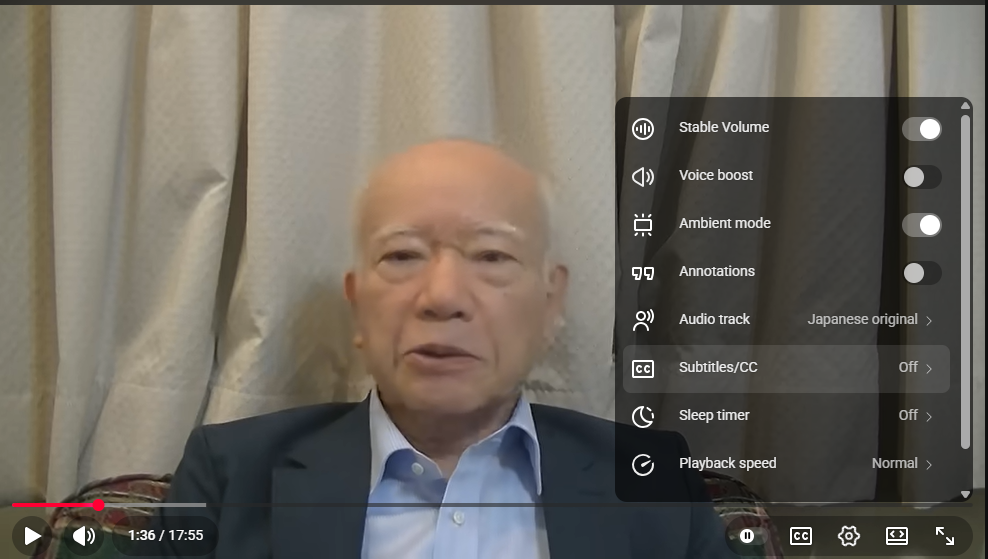
Click on “Subtitles/CC”.
-
Move your mouse over “English (auto-generated)”.
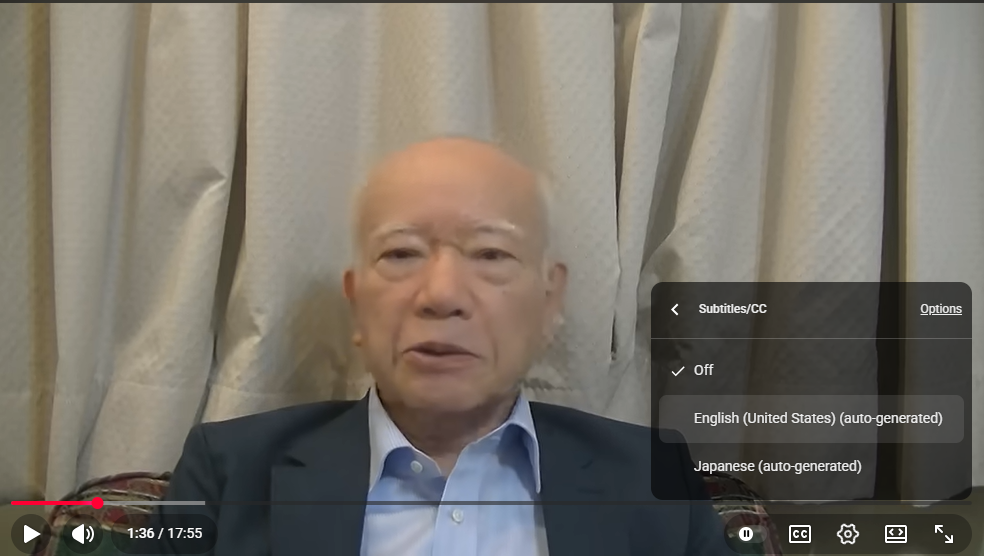
-
Click it, and English subtitles will appear at the bottom of your screen.
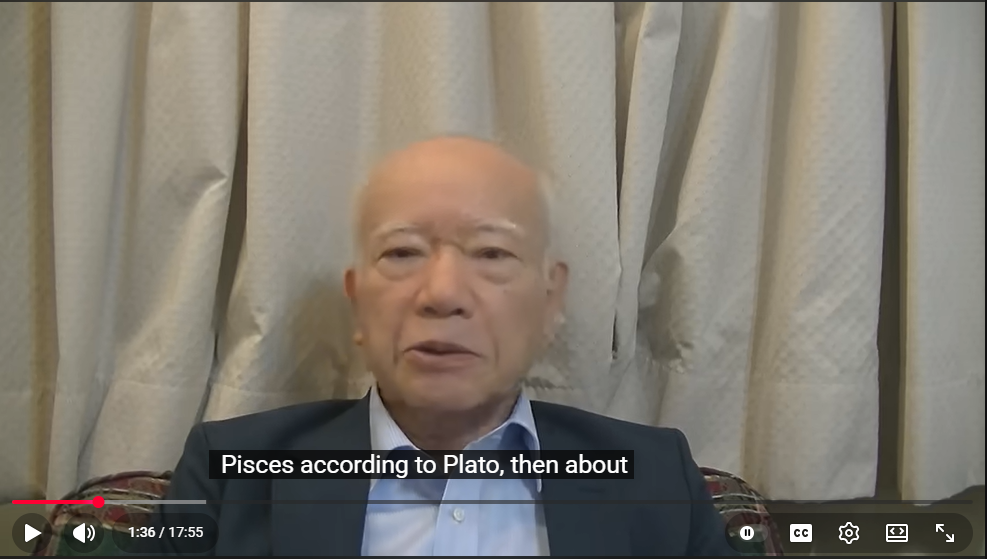
-
Click the Settings icon again.
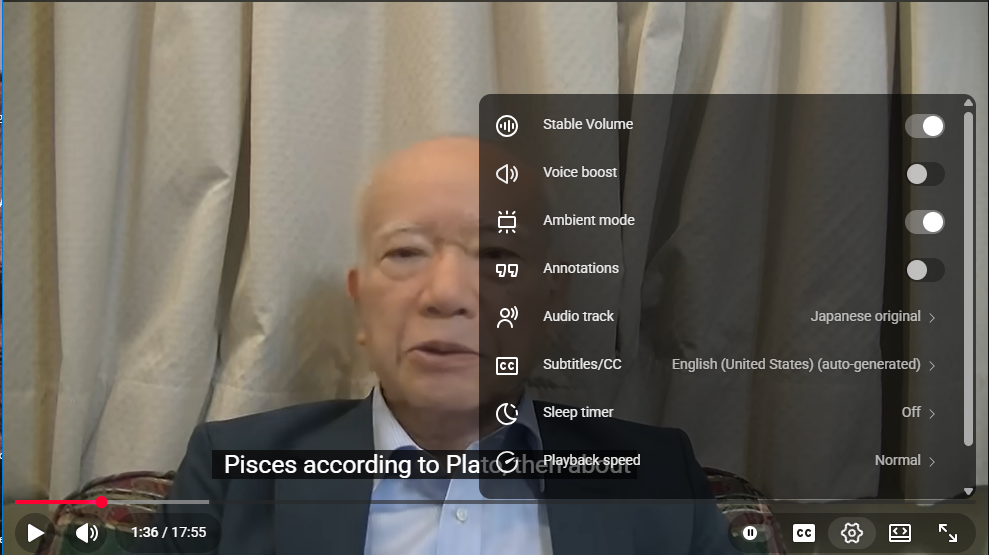
-
Move your mouse over “Auto-translate” in the Subtitles menu.
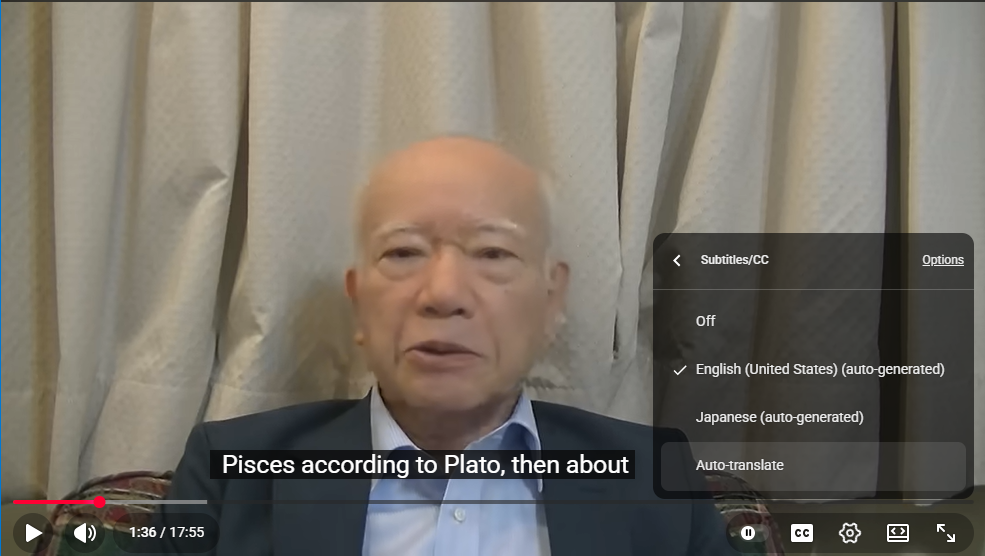
-
Click “Auto-translate” to see a list of available languages.
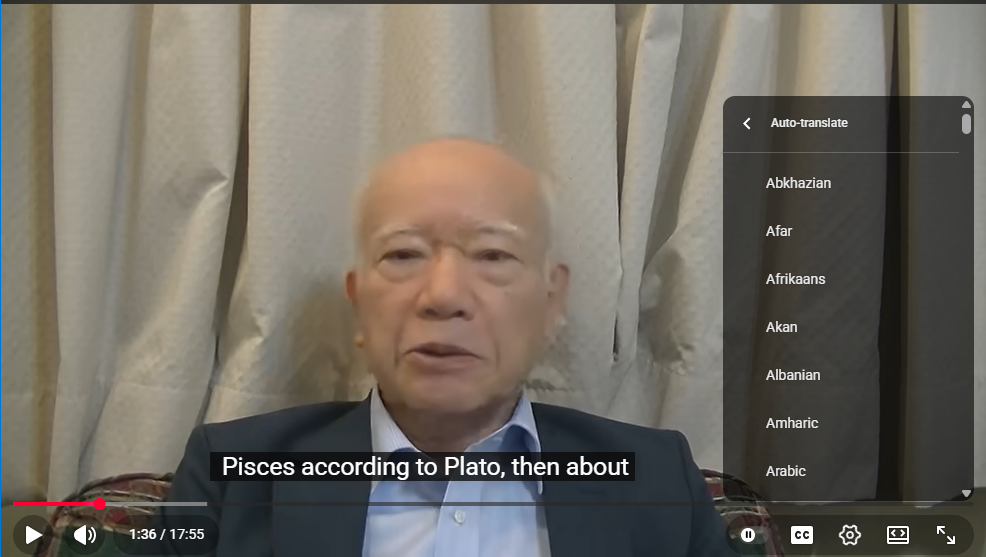
-
Click your preferred language (for example, “Estonian”).
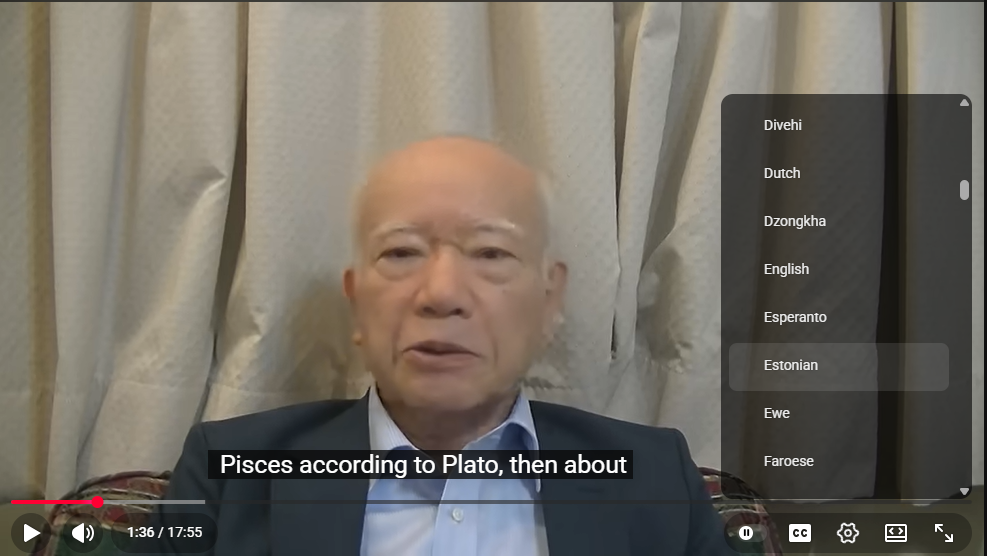
-
The subtitles will now appear in your chosen language!

For Smartphones
-
Standard Full-Screen ViewThis is the YouTube video playing in full-screen mode on an iPhone. Lightly tap anywhere on this screen.
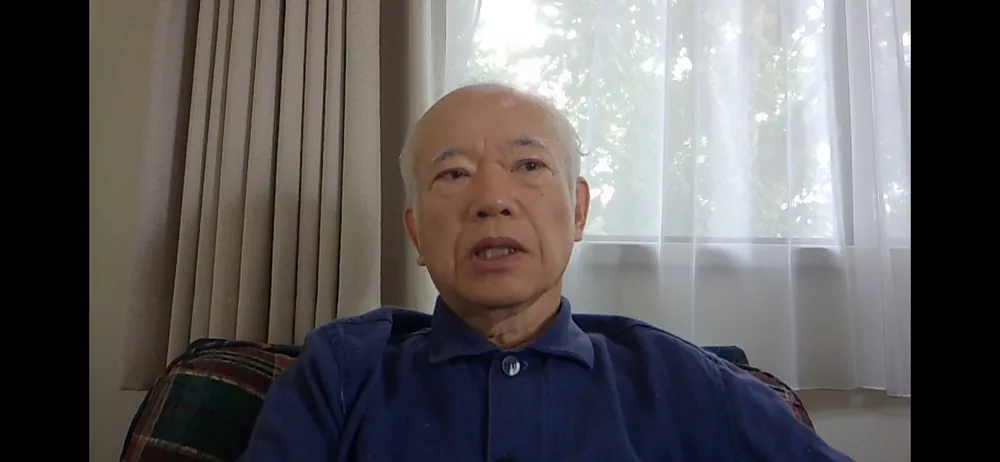
-
Display All OptionsTapping the screen will reveal all available options. To enable captions, you need to use the gear-shaped Settings button in the top right corner. Tap this button. (Since the “all options” screen looks the same on Android, you can follow these exact same steps for your Android device too.)
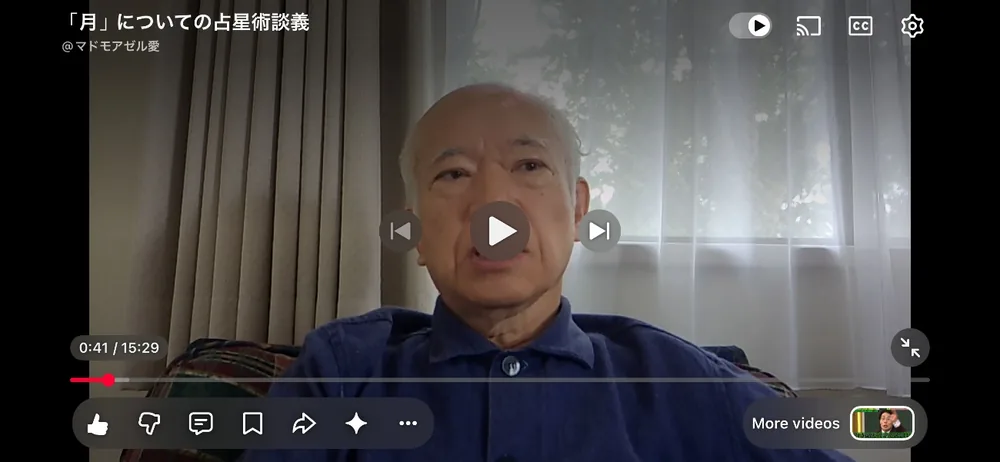
-
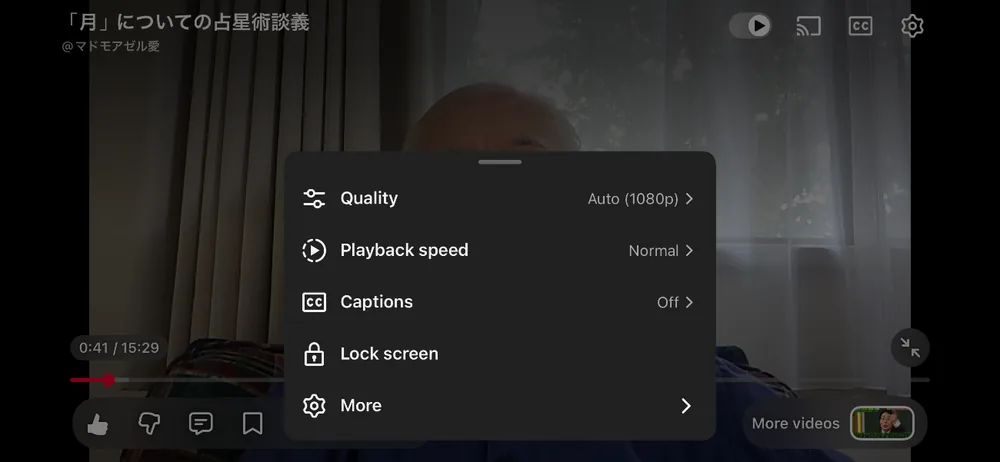
Settings ScreenTapping the gear button opens a menu window. The item related to subtitles here is “Captions”. Please note that while it is called “Subtitles” on the PC version, it is labeled “Captions” on smartphones. Tap on “Captions”.
-
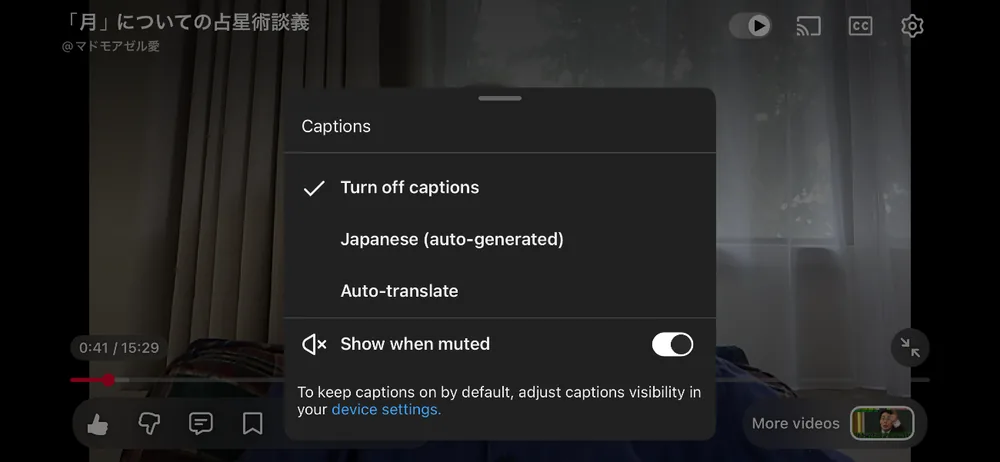
Captions MenuThe options in the Captions menu may vary depending on your smartphone’s settings. On this iPhone, the options displayed are “Turn off captions”, “Japanese (auto-generated)”, and “Auto-translate”. Select “Auto-translate” here.
-
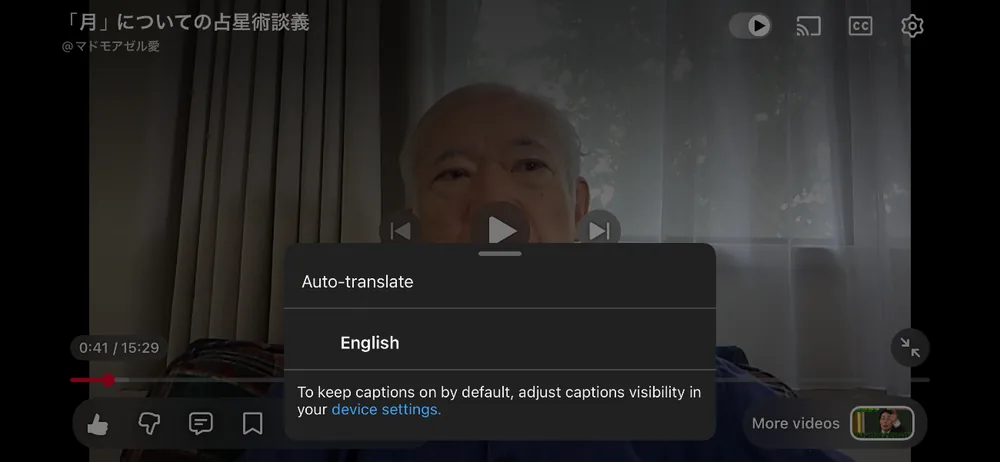
Auto-translate MenuIn this example, only “English” is displayed in the Auto-translate menu. Normally, a list of multiple languages should appear, but there are reports that the Japanese mobile YouTube app currently only shows English. We hope that multiple languages are available on the mobile YouTube app in your region. Then tap the English.
-
English CaptionsThe English captions are now displayed. While the auto-translation accuracy is still developing, it should help you grasp the main points of the video.